
Restaurant POS Kitchen Orders in 2026: 9 Controls That Prevent Missed Tickets
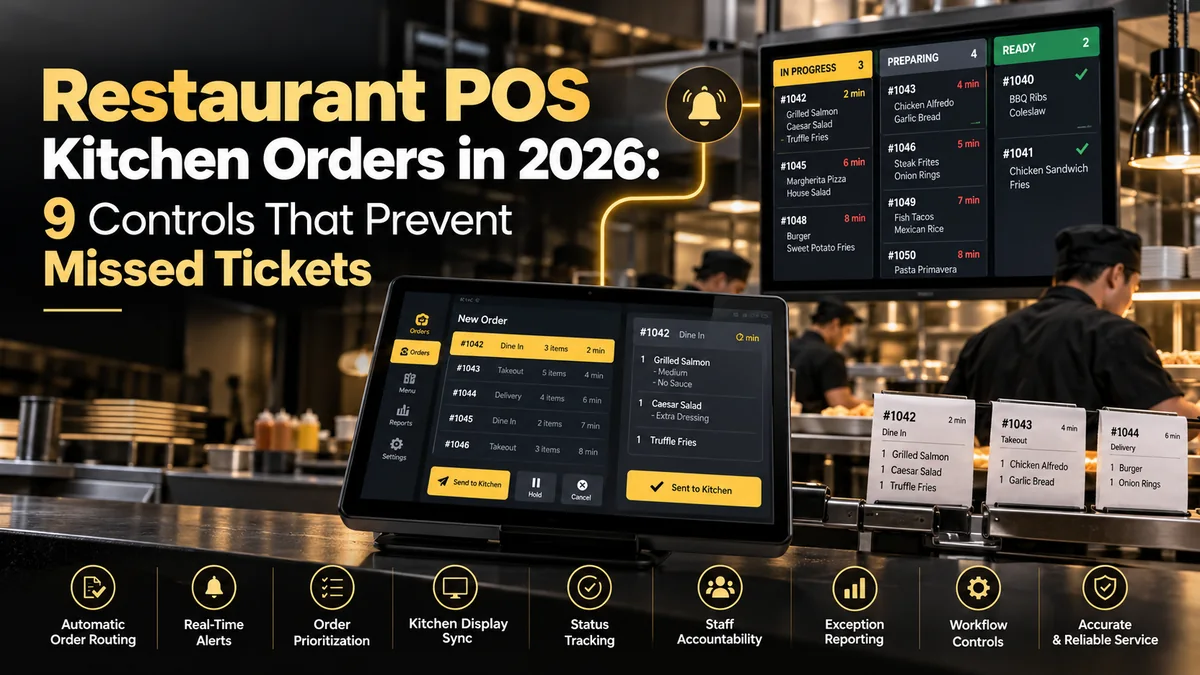
A restaurant can take a perfectly accurate order at the counter and still deliver the wrong dish if the instruction never reaches the kitchen correctly. A missing modifier, a duplicated ticket, or a table transfer made after preparation starts can cause delays that a basic sales report never explains. Restaurant POS kitchen orders need their own reliable workflow, not just a button labeled “Send.”
This 2026 guide explains nine practical controls for connecting waiters, cashiers, kitchen display screens, kitchen order tickets (KOTs), and payments. It is intended for café operators, restaurant managers, and teams planning custom POS software.
What is a restaurant POS kitchen order workflow?
The restaurant POS kitchen orders workflow begins when staff capture an order, continues when the kitchen accepts the items, and finishes when the food is ready, served, and correctly billed. A kitchen order ticket may be printed or shown on a kitchen display system (KDS). It is different from the customer bill: a KOT tells the kitchen what to prepare; the bill tells the guest what they owe.
An illustrative flow is Draft order → Sent to kitchen → Accepted → Preparing → Ready → Served → Paid/Closed. Some venues require separate stations for drinks, starters, mains, and desserts. The actual states must fit how the kitchen works.
9 controls for dependable restaurant POS kitchen orders
1. Keep one authoritative order ID
For restaurant POS kitchen orders, give each ticket a stable identifier connecting the waiter view, table, KOTs, payment, and reports. A simple display number such as “Order 18” helps staff, but a unique internal ID prevents collisions across days or branches. When a printer retries, the same order should not become two sales.
2. Record modifiers as structured instructions
For restaurant POS kitchen orders, choices such as “no onion,” “extra cheese,” “medium spice,” or “milk alternative” should be stored as item-level modifiers, not buried in a note that is easily missed. If a modifier affects price, that amount must appear on the customer bill while the kitchen sees the preparation instruction. Allergens and dietary requests deserve prominent handling and human verification.
3. Route items to the correct preparation station
To keep restaurant POS kitchen orders flowing, assign menu items to the appropriate preparation station: hot food, bakery, cold station, or barista. A coffee should not depend on the grill printer, and kitchen staff should not need to scroll through unrelated retail products. Provide a fallback when a station printer, network, or screen is unavailable. For practical troubleshooting checks, see Square’s official guide to missing kitchen-display orders, including order-routing and device checks.
4. Track clear ticket states and responsibilities
Restaurant POS kitchen orders need explicit states such as Sent, Accepted, Preparing, Ready, and Served. Make sure a tap cannot accidentally skip necessary stages. Record who changed the state and when, and prevent completed tickets from reappearing indefinitely in active queues. Keep historical orders available for authorized investigation.
5. Make edits after sending visible
When restaurant POS kitchen orders change after a KOT has been accepted, show a distinct update or cancellation message for added or removed items. Otherwise, a cook may complete an outdated ticket. The system should display what was added, removed, or changed, with the time and user responsible. The Toast kitchen display system overview illustrates how some KDS platforms signal order changes and provide ticket notifications; check the capabilities of your chosen system separately. Do not silently replace the original KOT.
6. Handle tables, split bills, and seat moves carefully
Table identity can change without changing which food the kitchen is preparing. Preserve the order ID, keep its KOT history intact, and record a table move separately. Split payments should change settlement allocation, not accidentally create duplicate kitchen orders. For requirements across different business types, see why industry-specific POS software matters.
7. Prevent duplicate sends and reconcile offline work
For reliable restaurant POS kitchen orders, design ticket sending to be idempotent: when a waiter presses Send twice or the network reconnects, the kitchen should receive one intended action rather than duplicate dishes. Assign each send or edit a unique event reference and acknowledge it. During internet problems, show whether the order is pending local delivery, delivered to the station, or unconfirmed.
8. Make voids, complimentary items, and refunds auditable
Canceled food after preparation begins may create wastage. Record reason codes, affected items, approving roles, and whether ingredients should return to available stock. A complimentary dessert, an order void, and a refund after payment are different financial events. Align the workflow with refund and return controls and role-based permissions.
9. Measure bottlenecks without blaming staff unfairly
Track restaurant POS kitchen orders using acceptance delay, preparation duration by station, stalled-ticket count, and items remade. Segment by rush period and item complexity; a slow oven dish should not be judged by the same target as a cold drink. Use trends to improve staffing, menu design, and handoffs.
Kitchen order ticket versus customer receipt
| Kitchen order ticket | Customer bill or receipt |
|---|---|
| Preparation items and modifiers | Items, unit prices, taxes, discounts, total |
| Kitchen station and timing | Payment method and balance |
| Order state and edit alerts | Transaction and refund references |
| May hide customer financial data | Should hide unnecessary kitchen instructions |
Do not assume that printing both documents from one layout is enough. Kitchen instructions should be readable under service pressure, while a financial receipt must be clear for the guest and for reconciliation.
A worked example: a dine-in table changes its order
At 7:10 PM, Table 4 orders two burgers and one coffee. The waiter submits the order. The grill receives a burger KOT, while the barista screen receives the coffee. At 7:12 PM, the customer changes one burger to “without onions.” If the burger has not started, the kitchen sees a visible amendment. If preparation already began, the waiter must confirm the practical next step with staff rather than pretending the original instruction never existed.
At payment, the table splits the bill between two people. Kitchen history remains one order, while the payment screen records two settlements and shows any remaining balance. This example is illustrative; it describes the behavior to test, not the capabilities of a particular POS product.
Important restaurant POS test scenarios
- Two waiters edit the same table at nearly the same time.
- The waiter sends an order twice because the screen appears unresponsive.
- The barista printer is offline but the kitchen printer still works.
- A modifier changes price after the KOT has been accepted.
- Two customers split the bill, with one partial payment already recorded.
- A dish is canceled after preparation and must be marked as waste.
- An order is marked Ready but remains unserved for several minutes.
- The network reconnects after a busy service and queued events synchronize.
Test these situations on a staging copy using sample orders. A clean demo with one customer at a time is not enough to validate a production restaurant workflow.
How this affects inventory and management reports
A dish sale can reduce ingredients using a recipe or bill-of-materials mapping, but stock updates must respect voids, remakes, and wastage. Avoid counting the same ingredient deduction when kitchen state changes from Preparing to Ready. Reconcile sales and exceptions with the controls in POS inventory management and POS sales reporting.
How to introduce a KDS without disrupting service
- Map your current paper-ticket process and station responsibilities.
- Start with a small menu and one preparation area.
- Test modifiers, cancellation, and double-send scenarios.
- Run paper fallback during the pilot while staff gain confidence.
- Review preparation delays and missed-order reports each shift.
- Expand to more stations after confirming consistent operation.
Frequently asked questions
Does every restaurant need a kitchen display system?
No. Small venues may work well with printed KOTs. The important requirement is reliable routing, clear updates, and a method to recover from equipment failure.
Should the KOT print when payment is completed?
Not necessarily. Dine-in kitchens usually need instructions before final payment. Counter-service venues may prefer payment before preparation. Choose explicitly based on the service model.
Can the same POS handle dine-in and takeaway?
Yes, if order type, table association, delivery or collection details, kitchen routing, and billing rules are represented separately and tested.
What if the internet goes down?
The behavior depends on the architecture. A local network may keep kitchen communication working, but cloud-dependent functions can fail. Test the exact offline and synchronization behavior before relying on it.
Final recommendation
Build the restaurant workflow around reliable order identity, visible changes, correct station routing, explicit states, and reconciled payments. Those controls matter more than a flashy kitchen screen. Businesses planning a tailored system can review custom software development requirements and choose the smallest reliable workflow to implement first.